YOUR AI WORK DASHBOARD IN THE MAC MENU BAR
Know what's left.
Catch the next reset.
Watch your quota. Stay in your flow.
When a public reset signal arrives, the menu bar blinks
and a notification stays with you until you mark it read.
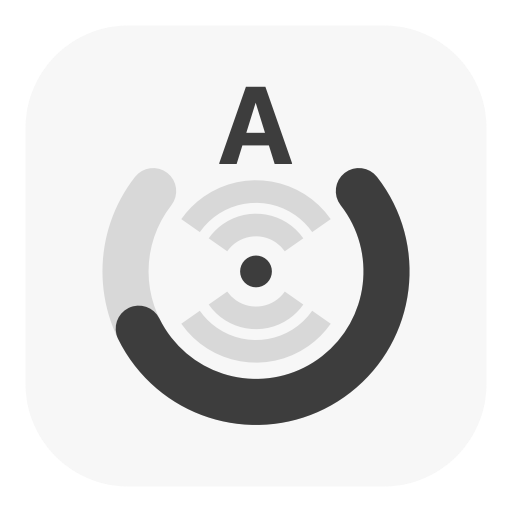
The outer ring shows the weekly quota, the center shows your pace.
Know when to slow down without opening the menu.
v1.39.3 · Reset alerts show the last 24 hours and each update can be dismissed; the OpenAI routes panel starts collapsed and auto-expands only when unreachable; Dim offers one-click Accessibility granting. Windows v1.38.6-beta.1 remains a separate beta.
Last 24 hours · 2 sample updates
A source announced a reset. Its later report appears above.
codex-reset.com · 10/27 09:00 Codex2/2
 Kimi1/1
A new Codex reset signal
A public announcement just landed. Catch the next quota opportunity.
Bell and notification alerts, with quotas and tasks still in view.
Sample messages and data · No notification permission needed · Public signals do not confirm your account reset · macOS feature
ONE ICON, THREE LAYERS
Quota. Pace.
And every task in flight.
The ring in the menu bar is more than a percentage. The outer ring holds your remaining quota, the center’s fan segments show reserve or deficit, and when a task starts, a wave orbits the ring. Parallel tasks each get their own rhythm.
Check the status from another screen ↘Self-test
Opening the left-click menu runs a quick demo: the outer ring sweeps while the center cycles through deficit, on-pace and reserve.
Idle
With no tasks, the icon holds still. The outer ring keeps the weekly quota; lower fan segments show deficit, upper segments show reserve.
Single task
One task, one wave, orbiting counterclockwise every 1.8 seconds — hidden through the top opening while the quota ring stays crisp.
Multiple tasks
Parallel tasks each get a wave and a rhythm of their own, up to five at once.
The real menu bar icon is only 22 pt; shown enlarged here. Normal icons follow native menu-bar tint; low quota uses orange, failure or offline uses red. Unread reset updates give the reminder bell priority.
01 / HISTORY ISN'T AN AFTERTHOUGHT
How fast this cycle drops.
The rhythm of past cycles.
The solid line records quota changes; a reference line tells you whether it can last until reset. Each small bar below is one past cycle — hover to replay it.
- Current cycle
5h and Weekly are tracked separately, showing remaining, reset time and reserve or deficit together.
- Across cycles
Beyond “how much is left now”, compare whether past cycles ran dry — and when usage peaked.
- Plan ahead
Pace judgement and low-quota alerts help you line up the next task before the quota bottoms out.
macOS Codex quota uses OAuth with local CLI fallback. A failed refresh keeps the successful same-account snapshot with an error label, without reusing another account’s old values.
Hover the history bars on the right — or focus them with a keyboard — to replay cycles.
Codex1/1Outer ringWeekly quota remaining
CenterPace reserve or deficit
02 / SHARED ACCOUNT, PER-MAC VISIBILITY v1.23.0
The account's quota.
This Mac's usage.
When several people share a Codex account, the total quota can't explain how much each Mac used. Local usage is measured from on-device logs, so you can see your own tokens, valid usage records, cache hit rate and estimated cost.
- Month + last 24h
The month calendar sits beside a 24-hour matrix, with 5 minutes per cell. Estimated cost appears only when usable prices exist.
- Follows the account
The left-click menu adds no account picker. Switched accounts are reviewed in Settings.
- Attribution with evidence
Old records that can't be attributed stay separate; costs are estimated from configured prices and never pretend to be a bill.
Codex local usage
Measured from local logs, separately from shared account quota.
Unknown history is never assigned to the current login. Login observations attribute only intervals with unchanged consecutive auth samples; switches, sleep and unobserved gaps remain unknown. This does not prove the account used by a request.
ACCOUNT POOL / SWITCH WITHOUT LOGGING IN AGAIN v1.30.0
Another Codex account.
No second sign-in.
The right-click panel gains a "Codex accounts" section: the active account and every stashed backup at a glance, and clicking Switch performs an atomic rename swap — no login prompts, no QR codes.
- Log in new
Stash the current credentials into the pool and reopen ChatGPT for one sign-in; from then on the new account is one click away.
- Never quits for you
While ChatGPT/Codex runs, a switch parks itself until you quit, then completes within seconds; the running state is re-checked at the last moment before any file moves.
- Quota follows account
Every account remembers the last captured 5h and Weekly remaining percentages with reset times — check before you switch.
- Credential guard macOS · v1.38.5
Keeps a restricted-permission copy outside ~/.codex for accounts seen on this Mac, and flags external sign-in changes. The mirror follows writes; it does not restore credentials or switch accounts automatically.
Manage the pool in place: rename, delete (to Trash), or import earlier hand-made backups with one click. API-key-mode auth files are never touched automatically. Background optimizations reduce repeated history scanning and menu-bar work while preserving refresh and animation cadence; idle CPU below 1% has not been verified.
Codex accounts
Account pool and active account · a switch is two atomic renames; credentials are read and saved locally; guard copies are never uploaded.
A same-account re-login replaces the older copy instead of duplicating it.
ACCOUNT WATCHING / macOS + WINDOWS
One email.
Codex quota across platforms.
The sharing device selects an account; the watching Mac or Windows PC adds its email. No team is required, and the watching device does not need to sign in to that Codex account.
- Separate from teams
Watch and team sharing are independent. On macOS, overlapping sources use the newer sample and keep their source markers.
- Check freshness
See quota windows, reset times and publication time. Not-shared, stale and network-error states are distinct; an old snapshot is never presented as live.
- Know what is public
Sharing is off by default. Once enabled, anyone who knows the email can query its published quota. Only quota metadata is uploaded, never provider login credentials.
Share, then watch
- Enable sharing on the source device
macOS: Settings → Providers → Codex → Watched accounts. Windows: Settings → Providers → Codex · account sharing and watching. Select a local account.
- Add its email on the other device
Refresh to see quota. Windows Watch edits save immediately and are not undone by Cancel. Accounts without fetched quota must first be signed in and refreshed.
03 / SHARED ACCOUNTS, COUNTED PER PERSON v1.23.0
One shared account.
Per-person numbers.
When several people share a Codex account, the quota becomes a black box: everyone sees what's left, nobody can say who spent it. Form a team and each Mac's local usage rolls up per member automatically, while account quotas are shared in real time — no more asking around.
- Create
Create a team in Settings → Usage & Team. Its management password is saved in Keychain; share only the invite code with members.
- Invite
Members join on their own Mac with the invite code and a name; the same name and passphrase later links another Mac.
- Roll up
Devices report local usage on their own; the app breaks it down by member, device and account, and usage and quota sharing can each be paused.
- Team in the menu v1.31.0
The left-click menu usage card switches to the team: whole team or a single member, current month and last 24 hours — no local Codex sign-in required.
Every member can click View team to open the read-only dashboard without entering a password. Managers use Manage team for direct access to invitations and devices. Team data stays isolated; quota history is kept for 90 days.
Team
All members can view this team's member, device and account usage. Only managers can rotate invitations and remove members. Provider login credentials are never shared.
WHO USED HOW MUCH · IN SETTINGS AND ON THE WEB
One set of usage charts,
in the app and on the web.
"Who used how much" is the same chart in the app's Settings → Usage & Team and on the /team web dashboard: split by member, device, account and date, with a month calendar plus the last 24 hours at 5-minute resolution — hover for exact values and price coverage.
- Multi-dimension
View by member, device, account and inspect date; the range above controls the whole comparison.
- 5-minute cells
A month calendar beside the last 24 hours — unreported time is honestly left blank, never shown as zero.
- Price coverage
Cost counts only records with valid prices; incompletely priced data is labeled as such, never presented as a bill.
TEAM USAGE
设计团队 · Design team
Member · Read-only access to this team
Updated 2026-09-18 10:02 UTC · t990e7052b3954a79
04 / DISPLAY OPTIONS, TOGETHER v1.20.0
Each model listed once.
You decide where it shows.
Menu visibility, the browser dashboard and chart style sit in one table. Choose independently — no hopping between pages.
Hiding only collapses the display. Collection, history, alerts and sync continue as usual.
Models & quota display
Set menu visibility, mobile selection and quota chart style in one place.
| Account / Model | Menu | Mobile | Chart style |
|---|---|---|---|
| Codex · developer@example.com | |||
| 5h | |||
| Weekly | |||
| Codex Spark Weekly |
Account switches preserve individual model choices. Select 1–2 models for mobile; Automatic uses the default chart rules. Hiding items does not affect collection, history, alerts or sync.
macOS v1.39.3: General settings offers menu account masking, e.g. a****g@example.com. Off by default; settings pages may show full accounts. Not implemented on Windows.
Settings → Display · The in-app mobile choice also applies to tablets, car browsers and more — keep 1–2 items
05 / LONG TASKS SHOULDN'T TIE YOU TO THE DESK
The Mac keeps working.
Another screen keeps watch.
Phones, tablets, car browsers — or another computer.
If a browser can reach the Mac on your LAN, it can open the read-only dashboard.
Tasks, quota curves, routes and live connections stay in view.
No dedicated client · Turn on the dashboard on your Mac, then open the LAN address or scan the QR code from another device. Devices must be able to reach each other; guest Wi-Fi isolation may block the connection.
Cross-device dashboard · Built from the app's real frontend with sample data — no connection to your Mac needed
One dashboard, two orientations
Landscape for the big picture.
Portrait stays organized.
Landscape lays out tasks, both quotas and connections side by side; portrait rearranges the same content. Light suits daytime, dark suits low light. It adapts to the browser window — no second page to maintain.
Phones, tablets, car browsers or another computer can all be that glanceable screen.
Stays awake while working, restores afterwards
Follows active Codex, Kimi, MiniMax and GLM tasks instead of keeping the Mac awake all day. Multiple tasks are counted separately.
Open a browser and look — landscape for the big picture
Phones, tablets and car browsers can show one or two quota models; appearance and OLED shift protection included, and compatible browsers can install it as a PWA.
Turn it on when needed, with guardrails
Off by default. When enabled it is bounded by battery, temperature, heartbeat and a maximum run time — restoring sleep settings on any anomaly.
RIGHT-CLICK / THE OTHER HALF OF YOUR WORK
More than quotas.
Care for the tasks in flight.
Left-click shows trends; right-click opens the control panel. Task sleep protection, lid-closed work, route switching and connection monitoring in one compact panel.
- Wake per task
Keeps the Mac awake while Codex, Kimi, MiniMax or GLM tasks run, and releases protection when they finish. Keep-display-on and screen-saver blocking are optional.
- Lid-closed, with guardrails
For times when the lid needs to stay closed. Off by default; first use installs a system helper, bounded by battery, temperature, heartbeat and a maximum run time.
- Network at hand
Test, filter and switch OpenAI routes; inspect connection history and live traffic. The routes section starts collapsed, auto-expands only when OpenAI is unreachable and folds back after recovery; automatic recovery is optional.
Sync status and detailed logs live in Settings; the menu stays focused on the moment.
macOS / v1.38–1.39
Dim when you step away.
See the state remotely.
Save an independent Dim target for each display. A screen-and-moon badge in the menu bar shows that local displays remain dimmed, including when you inspect the menu bar remotely.
- Per-display targets
Drag a slider for an immediate preview; input activity or leaving settings restores the preview. Restore on input is on by default: built-in trackpad/keyboard or Bluetooth mouse/keyboard movement, clicks, scrolling and key presses restore brightness. Keyboard detection requires Accessibility permission; when missing, the controls show an orange hint with an Allow button that opens System Settings. Turn the option off to use Restore or the menu bar icon’s right-button hold instead.
- Keys follow the pointer
Brightness keys adjust the display under the pointer. Built-in displays use system brightness; supported DDC/CI displays use hardware brightness, then Gamma below the hardware minimum. Option + Shift makes fine adjustments.
- Restore the original picture
Saves and restores hardware brightness and Gamma tables, with fixes for remote-session Gamma resets, stalled external displays and repeated key presses.
macOS only. Windows does not yet provide per-display Dim, brightness keys or the Dim badge.
Start using display controls
- Enable brightness keys
Turn them on in Settings → General and grant Accessibility permission. Quit MonitorControl so both apps do not handle the same keys.
- Save a target for each screen
Select a display and preview its target. Normal brightness-key changes do not overwrite the saved Dim target.
- Renew permission after an update
If the keys stop responding, toggle AI Quota Bar in System Settings → Privacy & Security → Accessibility.
macOS / v1.39.3
A new reset clue.
Reminders until you acknowledge it.
Reads public updates independently from codex-reset.com and codex-resets.com, distinguishing unconfirmed clues, announcements, source-reported resets and Banked updates. A source report does not prove your account has reset.
- Keep each source
Normally checks every minute, backing off on failures, without cross-site deduplication. A changed message or an announcement becoming a reported reset triggers a new unread version.
- Keep unread messages
Unread state stays on this Mac across restarts. A yellow dot replaces Codex’s C and only its quota unit alternates yellow/normal, preserving every quota ring; and system notifications are attempted again every five minutes until explicit acknowledgment.
- Acknowledge explicitly
Opening the menu, original post or notification body does not clear unread state. Only an explicit acknowledgment does. Reduce Motion keeps the icon steady.
- A 24-hour window
The panel shows only the last 24 hours; older entries stay archived locally for deduplication. Each update can be dismissed and the same revision cannot return on the next refresh.
Notifications depend on macOS permission, Focus and notification settings; the menu bar reminder remains. Not yet available on Windows.
Source updates and account quota stay distinct
- Read the source and type
Original text and time remain available for checking. An external announcement is not a measurement of your own quota.
- Mark messages as read
Acknowledge one or all messages in the menu, or use the explicit acknowledgment action in a notification; unwanted updates can be dismissed directly.
- Keep checking actual quota
Your remaining percentage and reset time still come from quota queries. Public updates do not overwrite them.
06 / STUCK? LOOK AT THE CONNECTION
Still transferring,
or just waiting too long?
The right-click panel shows OpenAI's active connections, upload and download speed, and the last 60 minutes of history. Connections of different ages use different colors, so long waits stand out.
- Route testing
Test this Mac's Clash / Mihomo routes directly — sorted by latency, filtered by country or regex, switched in one click.
- Failure recovery
Optional automatic recovery. Only after two OpenAI sites fail together for two consecutive rounds does it try the fastest matching route.
Active only · openai.com | chatgpt.com
WINDOWS / v1.38.6-beta.1 · SEPARATE BETA
The AI work dashboard,
in your taskbar.
A native .NET 8 Windows Forms app for 64-bit Windows 10+. Left-click for the quota control center, right-click for commands. The beta already includes quota curves, cycle history, local usage, watched accounts, Codex task protection and the LAN dashboard.
- Four providers
Codex reads local sign-in and falls back from OAuth to the local CLI, including weekly-only accounts. Kimi tries API key, desktop session and CLI; GLM takes an API key, MiniMax a token.
- Now and history
Quota windows show remaining amount, resets, pace, curves and past cycles. Codex includes local usage. A refresh failure keeps this run’s successful same-account snapshot with an error label.
- Share and watch
Settings → Providers adds per-account sharing, email add/remove, manual refresh, status and read counts. Mac and Windows can watch each other. Sharing is off by default.
- Codex protection
Prevents system sleep while Codex tasks run, releasing it after work ends. Ordinary sleep protection needs no administrator. Optional lid-closed mode changes the power plan, needs administrator rights and restores it afterward.
- Routes and LAN
Clash / Mihomo discovery, route filters, tests, switching, recovery and connection monitoring. Enable Mobile Dashboard for same-network browser viewing with pairing-code and account-masking options.
- Usage and teams
Local Codex tokens, cache hit rate and estimated cost, plus a team client and reporting channel. Windows settings do not yet match the Mac’s native create/join flow or account-attributed usage.
- Native tray
Text and ring modes use a dark backing and light border for contrast; settings rows adapt to their content. Login startup, single-instance protection and a DPAPI vault are included. Complete multi-monitor scaling acceptance remains outstanding.
developer@example.com
Today 1.2M · 35 days 18.6M
Cache hit 76% · Est. cost $2.40
Reserve +7.2pp
Past cycles · Height shows used quota
Resets 10-30 09:00
colleague@example.com
5h 71% · Weekly 58%
1 active task (Codex) · Sleep protection active
Proxy → JP Tokyo · 126 ms
LAN dashboard running :18765
WINDOWS / INSTALL, UPDATE AND LIMITS
Unzip and run.
Keep settings when updating.
The separate Windows beta ZIP includes the .NET 8 runtime; no extra runtime installation is needed. There is no installer or code signing yet, so check the download source when Windows shows a security prompt.
- Get started
Extract and run AIQuotaBar/AIQuotaBar.exe. Look in the taskbar’s hidden-icons area if necessary. Sign in to Codex CLI first, or configure another provider in Settings → Providers.
- Update and data
Quit the old app, replace its program directory and relaunch. Keep settings, history and the vault in %APPDATA%\AIQuotaBar. DPAPI encrypts the vault for the current Windows user.
- Connection diagnosis
OAuth uses the system proxy and certificate validation; CLI uses its own network configuration. A shared proxy or certificate fault can affect both. Logs are in %LOCALAPPDATA%\AIQuotaBar\app.log.
Not yet in this beta
- Mac display controls and alerts
Per-display Dim, brightness keys, the Dim badge, Codex reset-source alerts, menu account masking and the v1.38.5 credential guard mirror are not ported.
- Full account and task parity
Complete multi-account login management and provider data-source selection are missing. Task sleep protection is currently wired to Codex, not all four providers.
- Update and display acceptance
Update checks notify and open the release page; replace the ZIP manually. Not all windows, scale factors and monitor combinations have visual acceptance. Dashboard snapshots and usage storage have platform differences too.
READY WHEN YOU ARE
A small tool.
Calmer AI work.
Free and MIT licensed. A native menu bar app on macOS, a native tray app on Windows.
Download v1.39.3Windows edition
Four-provider quota, history curves, Codex usage and task protection, cross-platform watching, Clash routes and the LAN dashboard.
Download Windows betaWill Codex alerts keep quota rings visible?
macOS v1.39.3 keeps all quota rings visible. A yellow dot replaces Codex’s C; only the Codex unit alternates between yellow and normal colors every 0.75 seconds, with quota data still updating. Reduce Motion keeps it yellow. Windows does not implement these alerts.
Can I hide accounts for screenshots?
macOS v1.39.3 offers Settings → General → Account display → Mask accounts in menus, off by default. Both menus will show names and emails as a****g@example.com. Switching, collection and sync retain their identities; Mobile Dashboard masking is separate. Menu renaming is paused and account action messages use neutral summaries while masked. Settings pages may still show full identities. Not implemented on Windows.
How do I get started?
Download the installer package and double-click it: macOS installs the app into Applications and launches it, closing the running copy first and deleting the package when it is done. The public package is not Developer ID signed and not notarized; if macOS says the developer cannot be verified, Control-click the package and choose Open, or use Privacy & Security → "Open Anyway".
How do I install and update Windows?
Download the v1.38.6-beta.1 x64 ZIP, extract and run AIQuotaBar/AIQuotaBar.exe. It includes .NET 8 and requires 64-bit Windows 10+. No installer or code signing yet. Quit before replacing program files and keep %APPDATA%\AIQuotaBar. Update checks only notify and open the release page; see the Windows setup guide for steps and permissions.
How is local usage different from account quota?
Account quota is the provider-side total; local usage comes from Codex logs on this Mac. Usage records are not the same as every underlying HTTP request, and costs are estimated from configured prices — not a bill.
Several of us share one Codex account — can we see who used what?
Create a team in Settings → Usage & Team; members join with the invite code and a name, and each person's local usage rolls up automatically. The full flow and the /team panel are covered in the shared-account section above; different teams cannot read each other's data.
Is my data uploaded automatically?
Local usage can stay on-device. After joining a team, usage reporting and quota sharing can be paused independently; no team data is uploaded without a team. Account watching is a separate public channel: if you enable sharing, anyone who knows the email can query its published quota without a team. Provider login credentials are never uploaded; the macOS guard mirror stays local. Anonymous analytics have a separate switch. This page uses sample data and does not read your accounts or logs.
When I switch Codex accounts, how is history attributed?
The new version prefers account information from the logs, falling back to consecutive local sign-in observations. Old records that can't be attributed reliably stay “Unknown” instead of being charged to the current account. Costs are estimated from configured prices — not a provider bill.